TABLE OF CONTENTS
Overview
Stack Internal scopes are defined virtual "spaces" that allow you to control what knowledge and sources the AI system uses to formulate answers, as well as who can access it. They help you find relevant answers, keep related knowledge together, and control who can view or help manage that knowledge. You can use scopes to organize workspace knowledge for a team, project, or purpose.
Every question you ask and answer you receive occurs in a scope, either the default scope for your organization's workspace or a custom scope created by a user.
Access existing scopes
You can access scopes in several ways in your Stack Internal workspace.
Scopes in the chat box
When you click Chat in the left-hand menu, you'll be taken to a new chat. At the bottom of the "Ask anything…" box, you'll see a scopes selector. Click it to see a list of existing scopes you have access to.
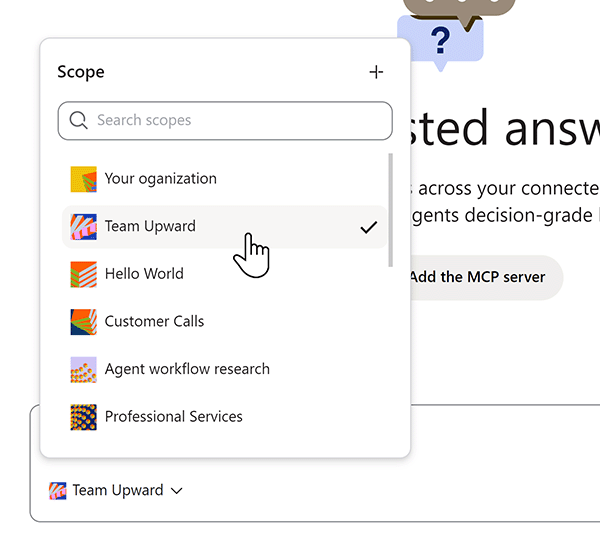
Select the scope you wish to use.
The Scopes page
To access the Scopes page, click Scopes in the left-hand menu. The Scopes page will appear.
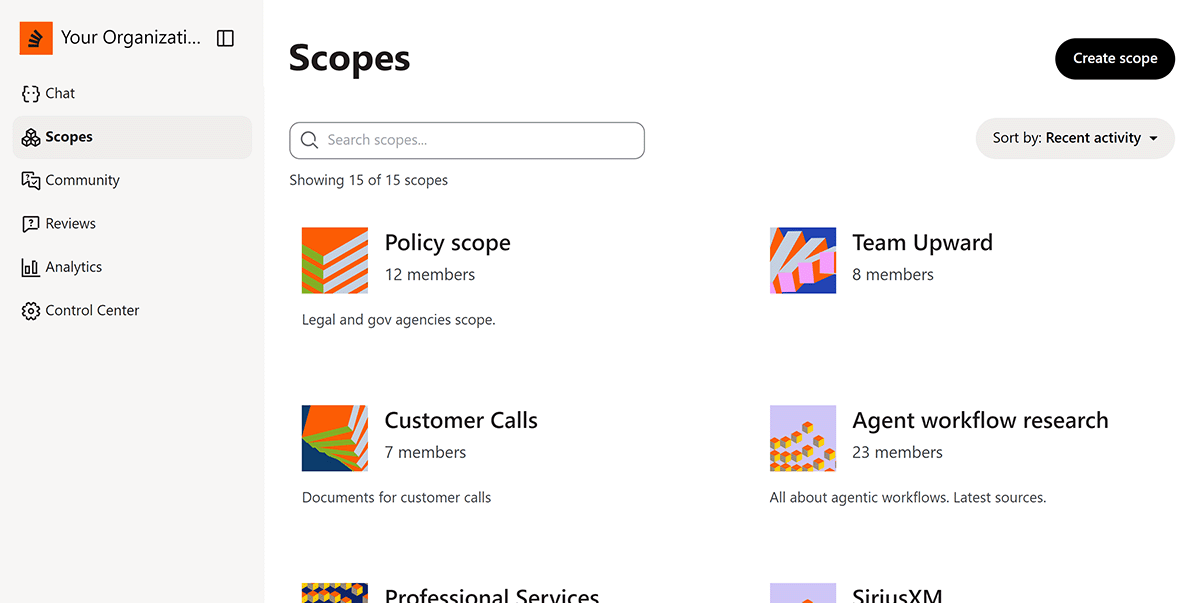
You'll see an icon, name, and optional description for each scope. The Scopes page also lists the number of members in each scope. Click any scope to open that scope's page.
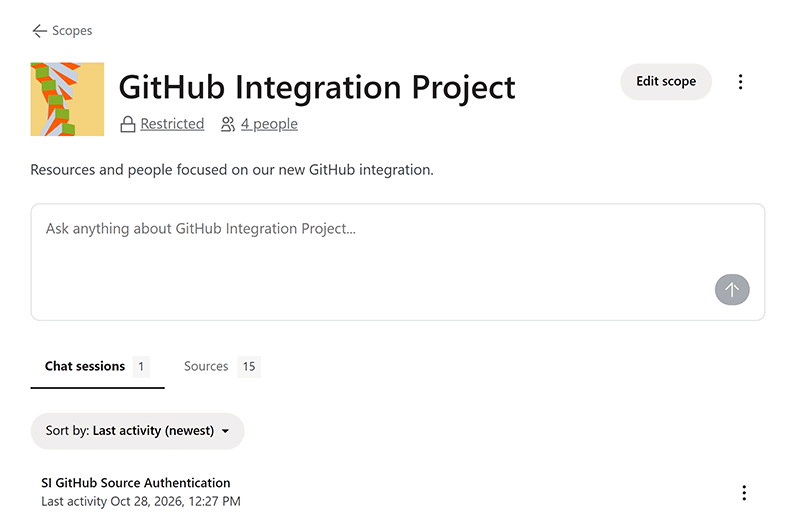
The scope page allows you to start a new chat by typing into the "Ask anything…" box. Under the chat box, the "Chat sessions" tab shows all chats you've created in that scope. The "Sources" tab shows connected sources. Click any source to see the content container(s) ingested by the source.
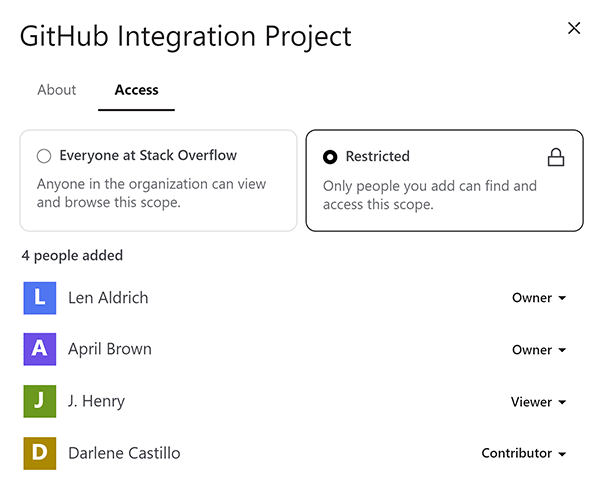
The scope page shows additional information about the scope. Under the title, you'll see information about who can use the scope, and the number of owners, contributors, and viewers. Click either of these to see a detailed view of the scope's access status and roster.
Scope sources
To see what sources the scope uses, click the Sources pull-down from the main chat page. You'll see a top-level view of the sources used by the scope.
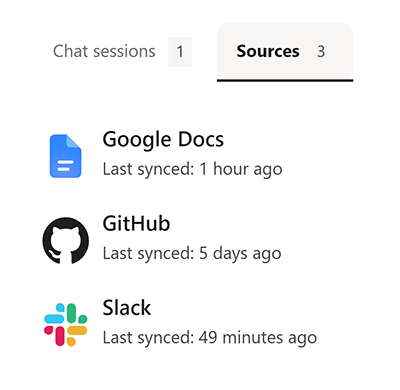
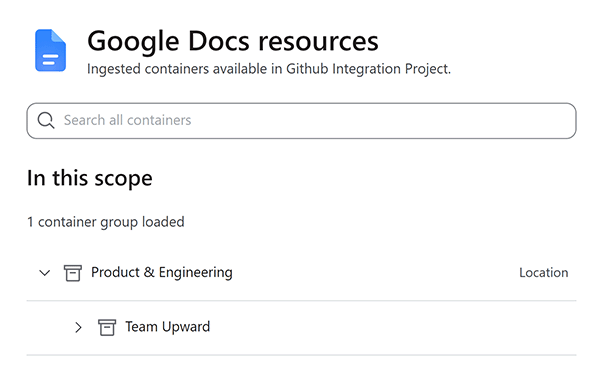
To see the sources in more detail, click any source. This will take you to a list of ingested containers for that source. Click collapsed containers to view sub-containers.
Create a scope
You can create as many scopes as you wish in the Stack Internal Organization tier; the Starter tier limits scopes to two. As owner, you control whether all or just selected users in your workspace can see your scopes. You can also grant other users permissions as scope contributor or owner.
New scopes use source connections already enabled for your workspace, but they do not automatically include any ingested content.
To create a scope:
-
Click Scopes in the left-hand menu.
-
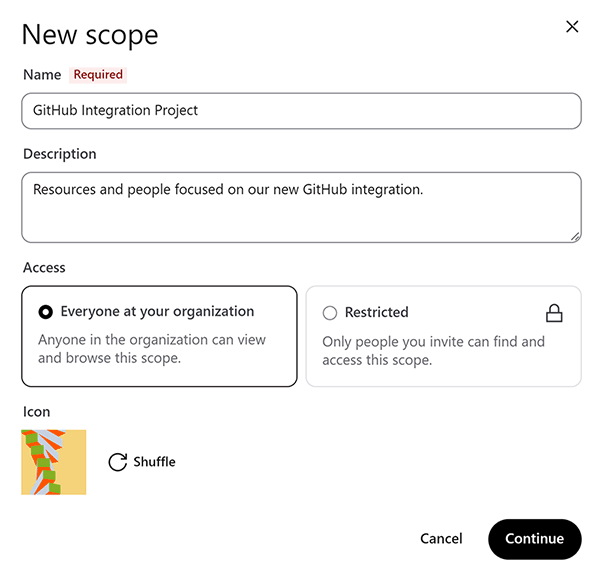
Click Create scope. The "New scope" dialog box appears.
-
Enter a descriptive Name and optional Description.
-
Under the "Access" heading, choose whether the scope should be available to Everyone at your organization or Restricted.
-
Click Continue.
-
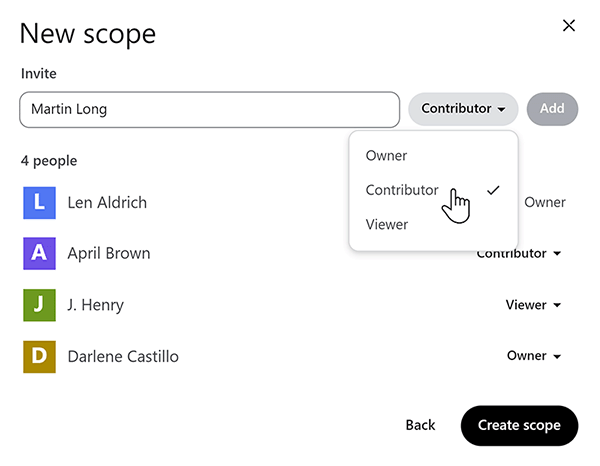
In the Invite box, enter all or part of a user name to search for that user. When their name appears, select it.
-
In the role pull-down to the right of the Invite box, select one of the following roles:
- Owner Full access rights, same as the original creator.
- Contributor Can add and select sources; cannot manage user roster or roles.
- Viewer Can use the scope for chat and view (not change) user roster and content sources.
-
Click Add.
-
After you've added all users, click Create scope. You'll be brought to the new scope page.

If you grant access to Everyone at your organization, all users on your Stack Internal site can access your scope with viewer permissions. If you choose Restricted, only those users you identify as viewers will be able to view your scope. The roster of owners and contributors for your scope is unaffected by the everyone/restricted selection.
Select source containers
A new scope has access to all sources configured by your Stack Internal workspace admins, but it starts with no connection to any content.
To set what content your scope will use:
-
Click the Sources tab. You'll see a list of all configured sources.
-
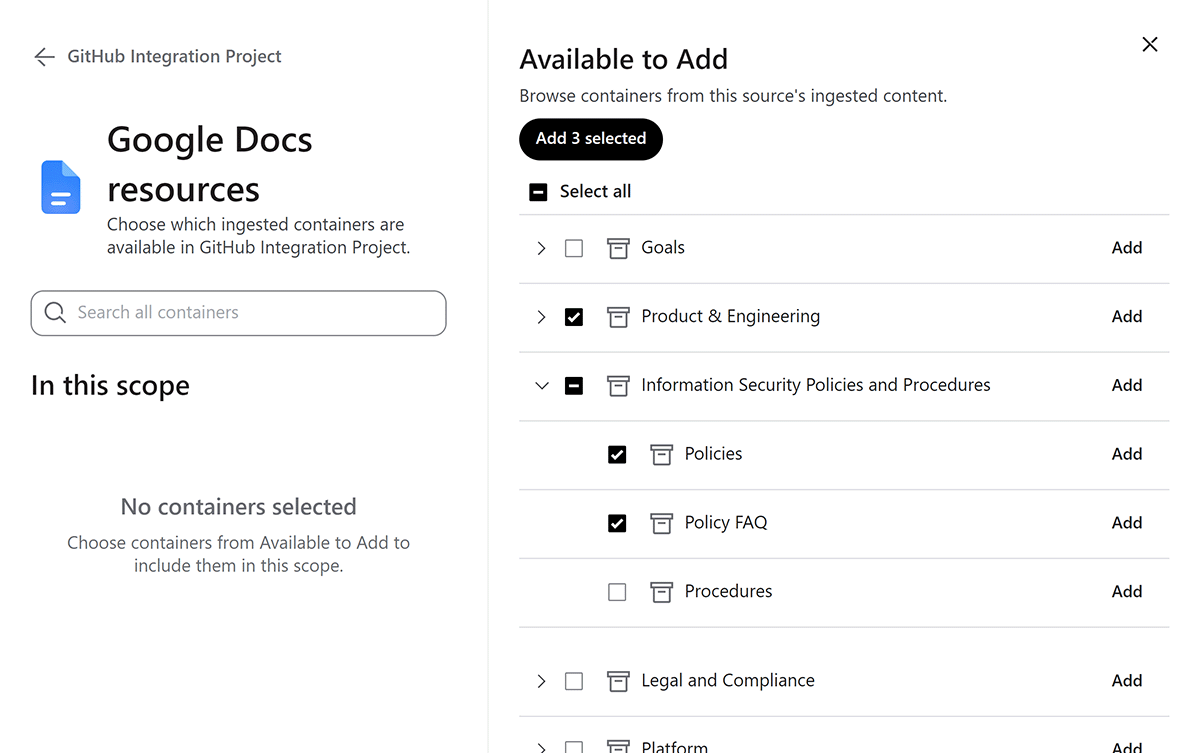
Click on the source you want to set up. The source resources page will appear, with content containers listed on the right in a tree structure.
-
Click the checkbox for every container you wish the scope to include. Click on top-level containers to reveal sub-containers. To add content from all top-level containers visible on the screen, check Select all at the top of the page.
-
Click Add # selected to add the selected content containers.
Stack Internal honors source permissions, meaning users can only view and select content they are permitted to access in the original source. Adding a source or container to a scope does not grant Google Drive, Slack, or other source permissions.
You may need to wait a few minutes to use your new scope as Stack Internal indexes the content.
Get help
If you have questions or issues, reach out to our support team for help.