TABLE OF CONTENTS
ADMIN PRIVILEGES REQUIRED
Overview
The GitHub source connects to GitHub repository content, allowing Stack Internal to ingest that content and use it to formulate its responses. The GitHub source will access only those repositories you select.
The GitHub source supports repositories based on whether the owner is an organization or a individual user.
- Repos owned by an organization The GitHub source supports public, private, and internal repositories.
- Repos owned by an individual user (personal account) The GitHub source supports public repositories only.
When connected to GitHub, Stack Internal will ingest:
- Repository metadata
- Markdown files from the default branch (.md and .markdown file formats)
- Issues and issue comments
- Pull requests, reviews, and review comments
The GitHub source does not ingest non-Markdown file contents, standalone commits, releases, or GitHub Actions, workflow, and deployment events. The GitHub source is read-only, and cannot alter your GitHub data.
Stack Internal connects to your GitHub account with a fine-grained personal access token (PAT). To create a PAT, log into GitHub as the organization owner or user that owns the repositories. Then follow the instructions below based on the type of repository.
For organization-owned repositories, follow the "Set up token for organization-owned repositories" instructions.
For user-owned repositories, follow the "Set up token for user-owned repositories (personal accounts)" instructions.
Set up token for organization-owned repositories
Important details
- You must log into GitHub as the organization owner. Just having access to the repositories is not adequate.
- The PAT should be owned by a service account so the integration doesn't break if an individual leaves the company. Learn more in the Service Accounts article.
- The service account or individual account owner requires admin-level permissions in Github to view the SSO e-mail addresses that enable access control.
-
Log into GitHub as the organization owner.
-
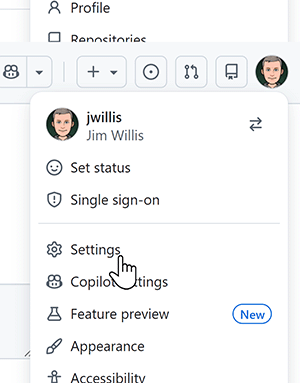
Click on your avatar (profile picture), then Settings.
-
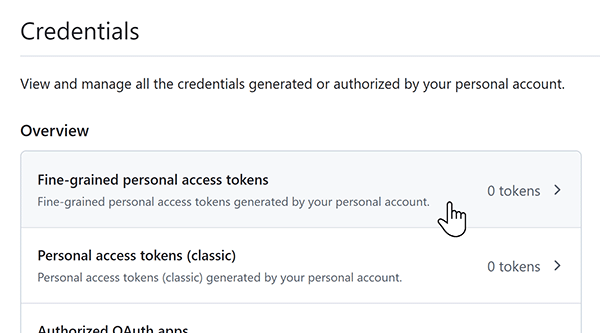
Click Credentials in the left-hand menu.
-
Click Fine-grained personal access tokens.
-
Click Generate new token. Confirm access if required.
-
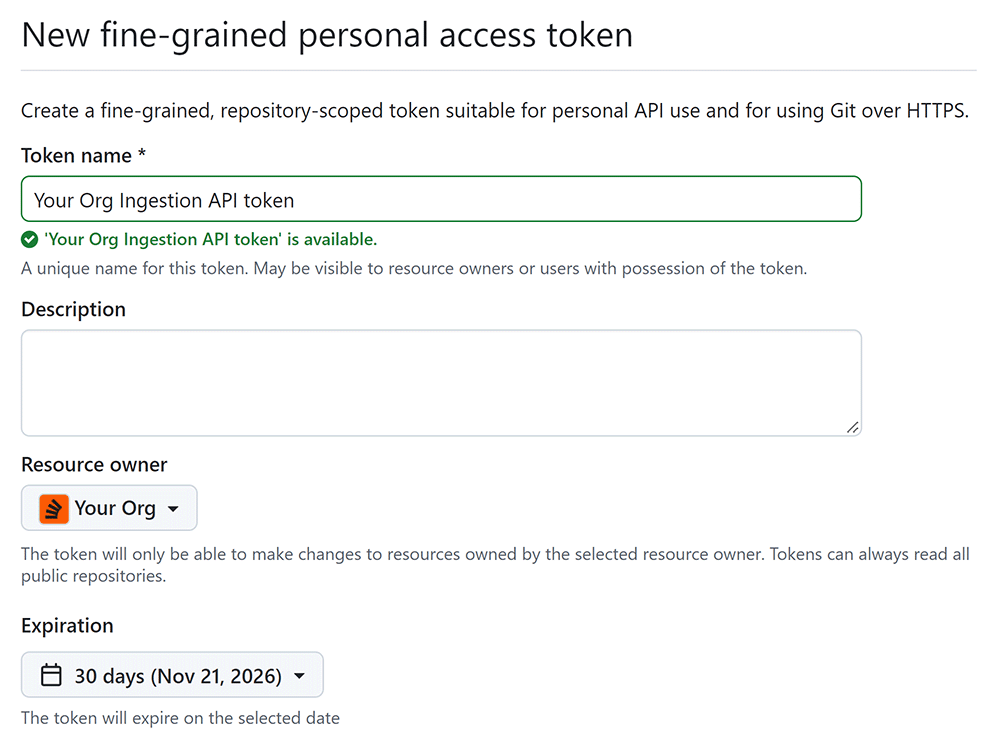
In the "New fine-grained personal access token" box, enter a descriptive name in the Token name field.
-
Select an Expiration date, or No expiration.
-
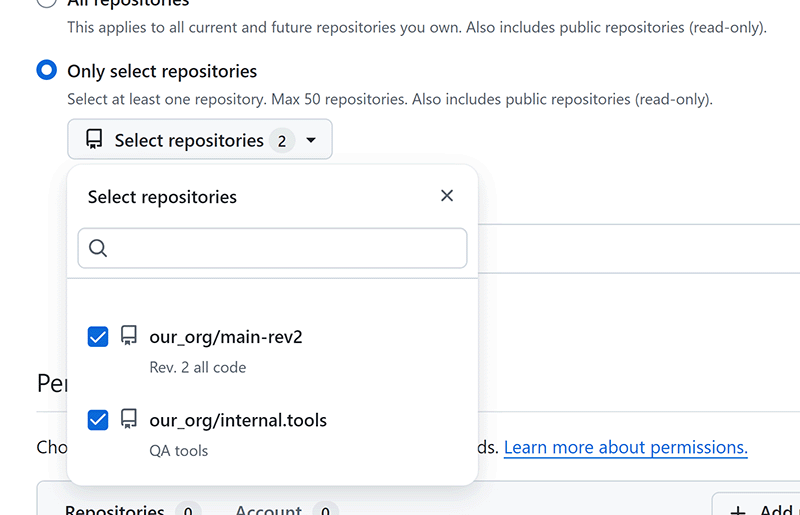
In the "Repository access" section, select Only select repositories. If you don't see this option, make sure you're logged in as the organization owner.
-
Click Select repositories, then enable the checkbox for every repository you want Stack Internal to access and ingest.
-
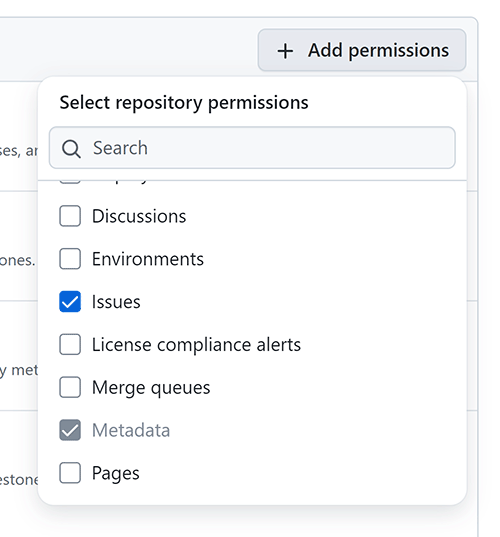
In the "Permissions" section, click Add permissions. For every repository, configure the following read-only permissions.
- Repositories:
- Metadata (mandatory/default)
- Content
- Pull Requests
- Issues
- Administration (only required for private or internal repos)
- Organization (if you select at least one public repository):
- Members
- Administration (only required to view SSO e-mail addresses)
NOTE: A user's email may be unavailable because of their GitHub privacy settings. If Stack Internal can't match that user to their GitHub account, the user may not be able to see content from private or internal repositories even when they have access in GitHub.
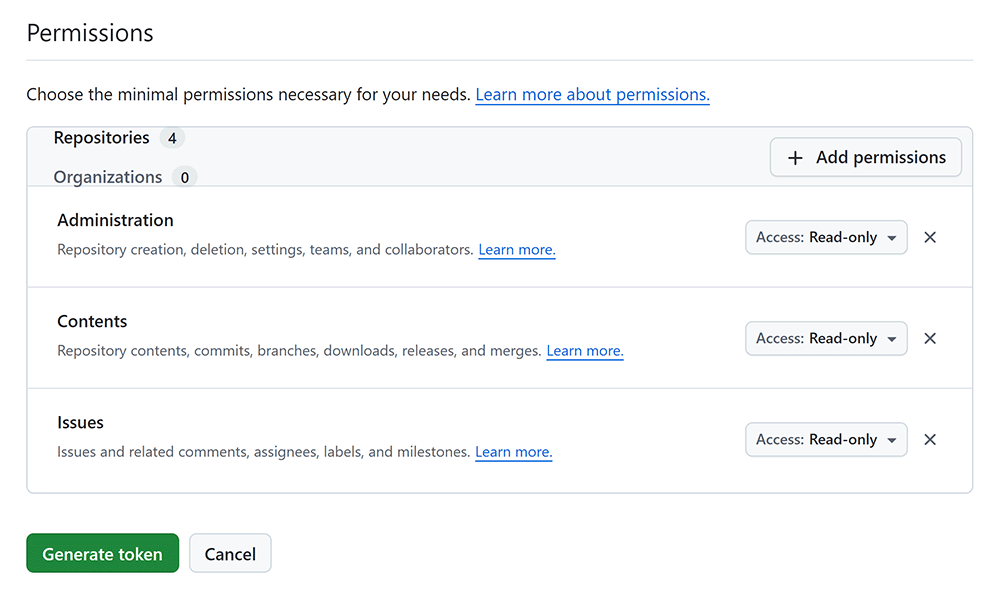
After you've selected all permissions, GitHub will list them in the "Permissions" list. Leave all permissions set to Access: Read-only.
- Repositories:
-
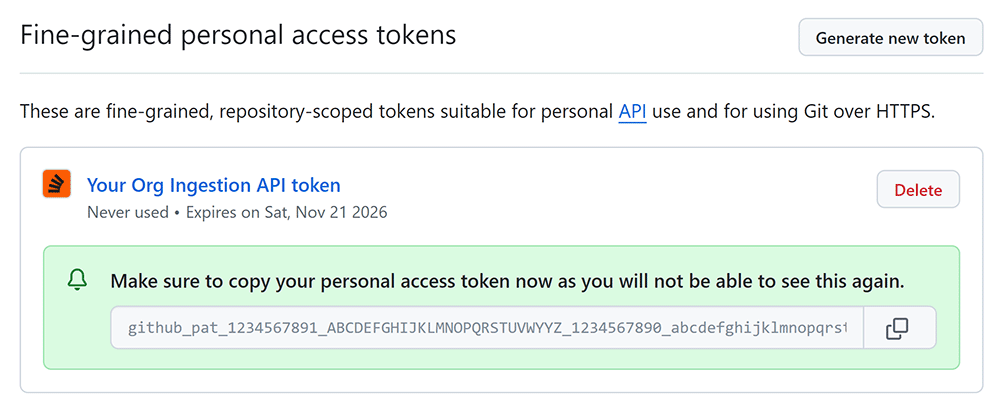
Click Generate token. GitHub will display the new token value.
-
Copy the token to a working document so you can paste it into Stack Internal. GitHub will never display the token again.
With the GitHub PAT created, jump down to the "Configure Stack Internal" section below.
Set up token for user-owned repositories (personal accounts)
View GitHub personal account instructions
You must log into GitHub as the user that owns the repositories. Just having access to the repositories is not adequate.
-
Log into GitHub as the user that owns the repositories Stack Internal will access.
-
Click on your avatar (profile picture), then Settings.
-
Click Credentials in the left-hand menu.
-
Click Fine-grained personal access tokens.
-
Click Generate new token. Confirm access if required.
-
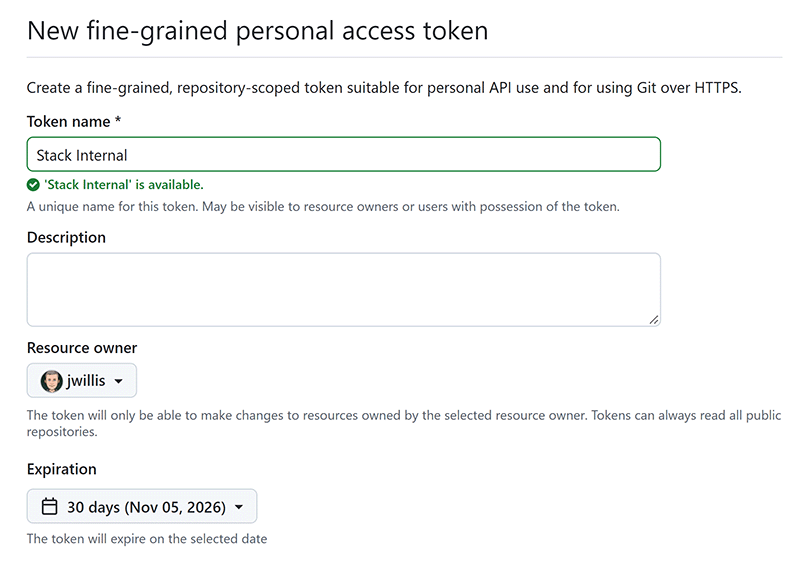
In the "New fine-grained personal access token" box, enter a descriptive name in the Token name field.
-
Select an Expiration date, or No expiration.
-
In the "Repository access" section, select Only select repositories. If you don't see this option, make sure you're logged in as the repo owner.
-
Click Select repositories, then enable the checkbox for every repository you want Stack Internal to access and ingest. NOTE: The Stack Internal GitHub source only supports public repositories for personal accounts at this time.
-
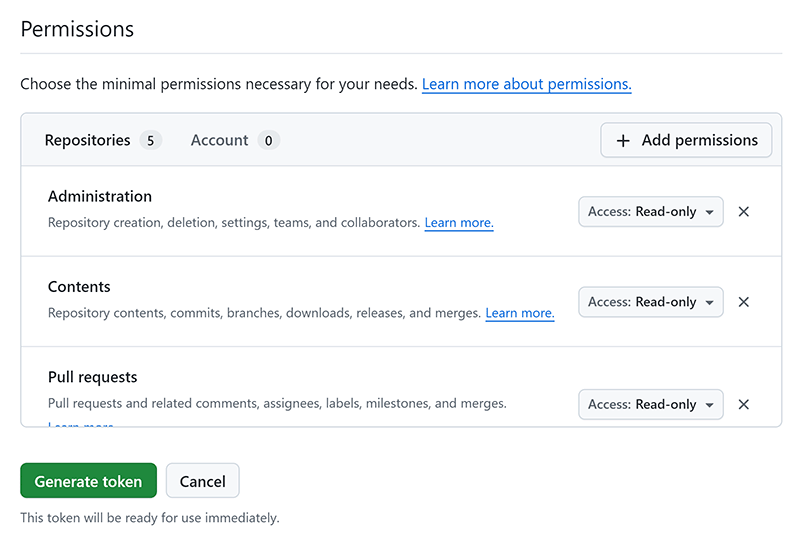
In the "Permissions" section, click Add permissions. For every repository, configure the following read-only permissions.
- Metadata (mandatory/default)
- Contents
- Issues
- Pull requests
After you've selected all permissions, GitHub will list them in the "Permissions" list. Leave all permissions set to Access: Read-only.
-
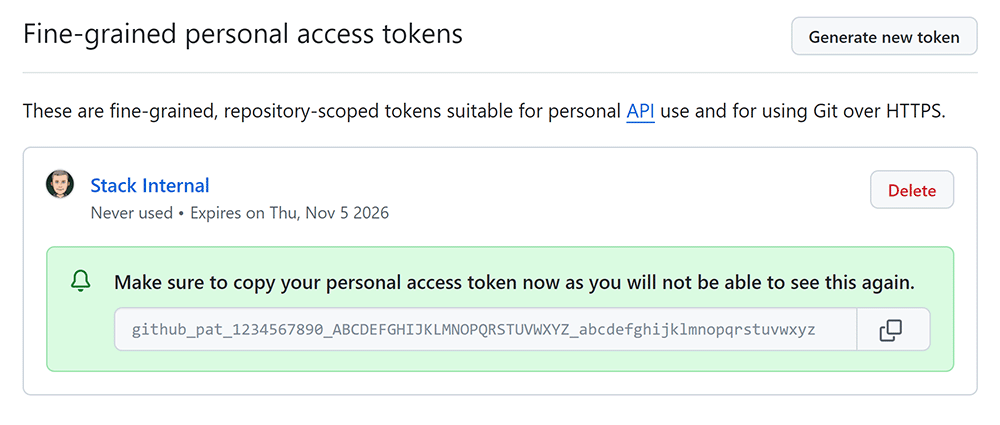
Click Generate token. GitHub will display the new token value.
-
Copy the token to a working document so you can paste it into Stack Internal. GitHub will never display the token again.
Configure Stack Internal
-
Log into Stack Internal as an administrator, then click Control Panel in the left-hand menu.
-
Click Sources, then GitHub.
-
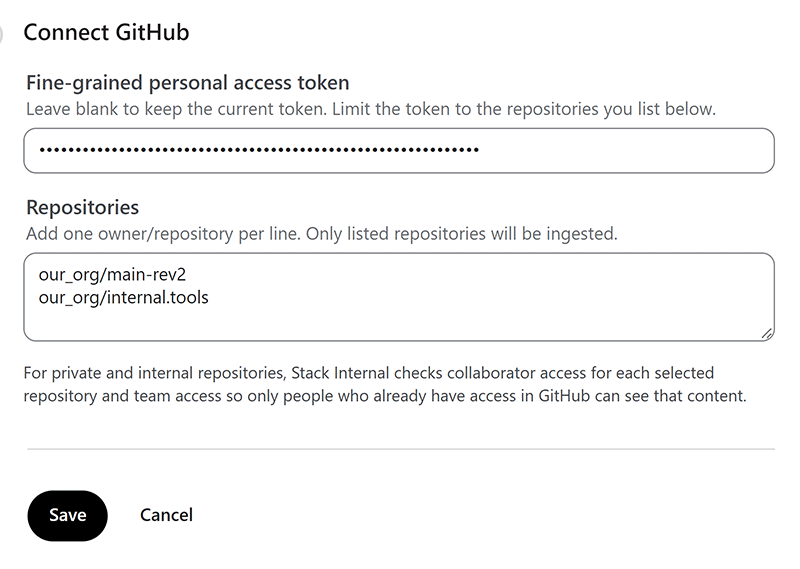
Under the "Connect GitHub" heading, paste the GitHub PAT you created in the previous step into the Fine-grained personal access token field.
-
In the Repositories text box, enter each repository on its own line in this format: owner/repo. Do not enter full URLs.
-
Click Save.
Stack Internal validates the token, repository format, repository access, and required permissions when you save. Stack Internal stores the token as a secret, and will never display it in clear text.
The GitHub source supports any number of public repositories, but private and internal repositories require additional access checks. Stack Internal limits those checks to 100 repository/team work items per GitHub source connection.
If you hit this limit, reduce the number of private/internal repositories or teams included in the source.
When you configure the GitHub source, Stack Internal starts ingestion for the configured repositories. The initial sync goes back 30 days. After that, Stack Internal syncs with GitHub to ingest new or changed content on an interval set by your site's deployment (default: 24 hours).
When you initially enable the GitHub source or change the token, Stack Internal checks access to all configured repositories. When you add repositories without changing the token, it checks only the repositories you add.
Stop ingestion of GitHub content
You can change the configured repositories or disconnect the source when you no longer want Stack Internal to ingest GitHub content.
Disconnect the GitHub source
To disconnect the GitHub source and stop all future content ingestion:
- Log in to Stack Internal as an administrator.
- Go to Control Center -> Sources -> GitHub -> Manage.
- Click Disconnect.
- Confirm the action.
Remove a repository
To keep the GitHub source connected but remove a specific repository:
- Log in to Stack Internal as an administrator.
- Go to Control Center -> Sources -> GitHub -> Manage.
- Remove the repository from the repository list.
- Click Save.
Disconnecting the GitHub source or removing a repository will stop future ingestion, but will not remove previously ingested content. If you need to remove content, reach out to support.
Troubleshooting
Use the information below to troubleshoot errors you may see while saving the GitHub source configuration, or when a GitHub ingestion run requires administrator action.
Configuration errors
Configuration errors appear when you save the GitHub source settings.
| Error | Resolution |
|---|---|
| Token missing or rejected | Create a new fine-grained personal access token (PAT), then replace the token in the GitHub source configuration. Confirm that the token has not expired or been revoked. |
| Repository list missing or invalid | Add at least one repository in owner/repo format, such as stackeng/handbook. Do not enter a GitHub URL. |
| Repository not found or inaccessible | Confirm that the repository exists and that the GitHub user who created the PAT has access to it. Update the selected repositories for the PAT if needed. |
| Required permissions missing | Grant the PAT read-only Metadata, Contents, Issues, and Pull requests permissions. For private or internal repositories, also grant read-only Administration and organization Members permissions, and collaborator access to each selected repository. |
| GitHub teams or team members cannot be verified | Confirm the additional private or internal repository permissions, then save the source again. |
| Configuration exceeds the 100-work-item limit | Reduce the number of private or internal repositories or GitHub teams that must be validated, then save again. Adding repositories in batches can reduce save-time validation, but it does not avoid the separate runtime limits for the full configured scope. |
Ingestion errors
After configuration, check the GitHub source status and the most recent run. Authentication, permission, ACL-projection, and scope-limit failures can require administrator action.
| Error | Resolution |
|---|---|
| Authentication or permission failure | Replace the PAT or restore its access to every configured repository, then run the source again. |
| Private or internal repository access failure | Confirm that Stack Internal can verify repository teams, team members, and direct collaborators with the PAT. |
| Ingestion or membership synchronization exceeds the 100-work-item limit | Reduce the configured private or internal repository scope, then run the source again. |
| GitHub rate limit or transient failure | The connector retries these failures automatically. If the source continues to require administrator action after a later run, review the token and configured repository scope. |
| Markdown synchronization failure | The connector attempts a full-snapshot recovery when a supported Markdown comparison fails. If the error persists, reach out to support for help. |
Get help
If you have questions or issues, reach out to our support team for help.