TABLE OF CONTENTS
ADMIN PRIVILEGES REQUIRED
Overview
Subject matter experts (SMEs) help ensure that Stack Internal delivers accurate, timely knowledge to your users. When a user requests verification of a chat response, Stack Internal routes the request to an SME for the relevant topic. That SME can then confirm, correct, reject, or forward the request.
Use the "Topics and SMEs" page to review topics, assign SMEs to topics, and choose the order in which Stack Internal contacts SMEs. You need the SME management permission to access the "Topics and SMEs" page.
Topics and SMEs
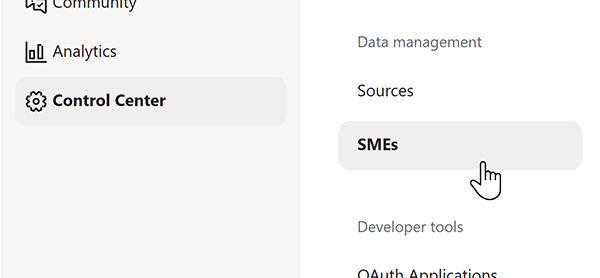
To manage SMEs, click Control Center in the left-hand menu, then SMEs (under the "Data management" heading).
The "Topics and SMEs" page lists topics derived from your ingested knowledge and the SMEs currently mapped to each topic.
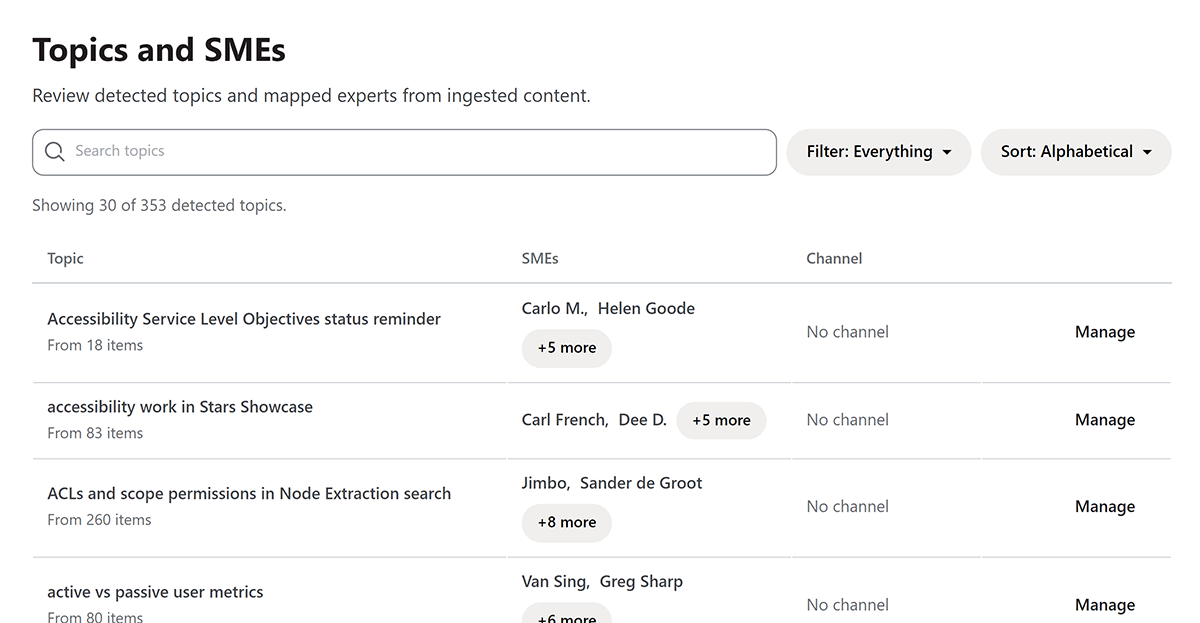
Use the Search topics field at the top of the page to find a topic by name. Click Filter to show either all topics or only topics without SMEs. Click Sort to order the list alphabetically, by the number of items in the topic, or by most recently added.
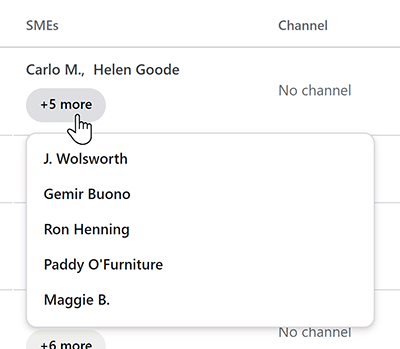
Each topic shows its name and the number of knowledge items that contributed to it. The "SMEs" column shows the first two assigned SMEs; click +# more to view all SMEs.
If a topic has no assigned SMEs, Stack Internal highlights it and displays "No SMEs assigned". Stack Internal will not be able to initiate the SME verification process for this topic.
The "Channel" column shows the Slack channel used for SME alerts. This column is still in development.
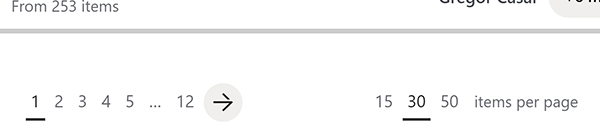
You can use the page controls at the bottom of the page to move through results. Links on the right-hand side allow you to select 15, 30, or 50 topics per page.
Manage a topic
Click Manage beside a topic to open the "Manage topic" dialog.
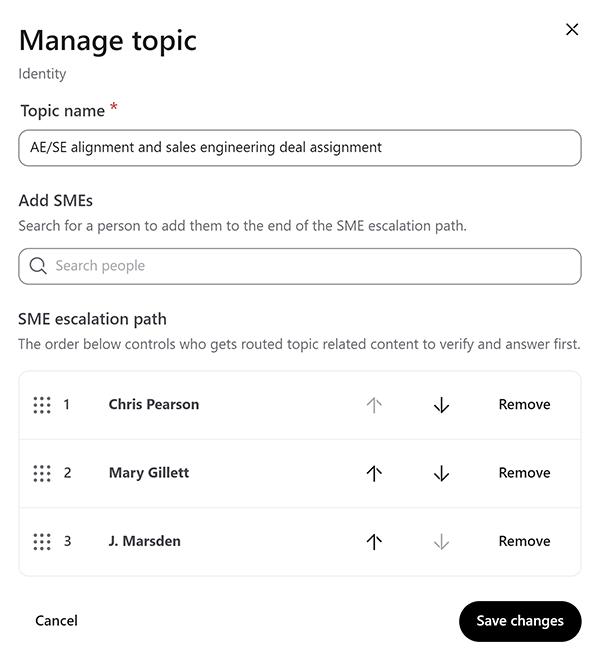
Use the Topic name field to correct or refine the topic name shown in Stack Internal. If you need to change the name, make sure the new name is specific enough that it's easy to recognize later.
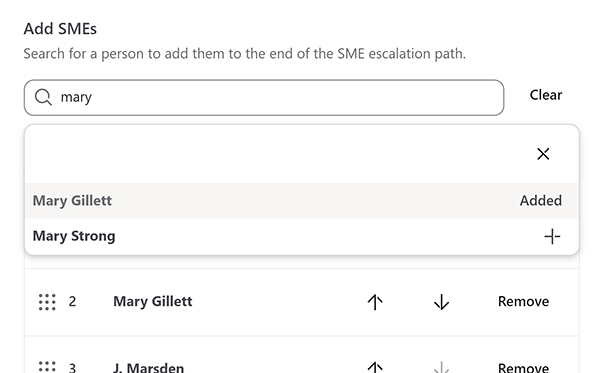
The Add SMEs field allows you to search for a user to add as an SME for the topic. Select a result to add that person to the end of the SME escalation path. A person already assigned to the topic appears as "Added", and you can't add them twice. The search results will include a job title when one is available.
The SME escalation path controls the order in which Stack Internal routes verification requests for that topic. The SME listed first receives the initial request. If that person does not respond, Stack Internal will move the request to the next eligible SME.
Use the up arrow and down arrow buttons to change the notification order of the SMEs. Click Remove to unassign a user as SME for the topic. If you remove every SME, the dialog shows a "No SMEs assigned" message.
Click Save changes to apply your changes, or Cancel to close the dialog without saving. If Stack Internal can't save the update, it shows an error and keeps your changes available to review.
How verification requests work
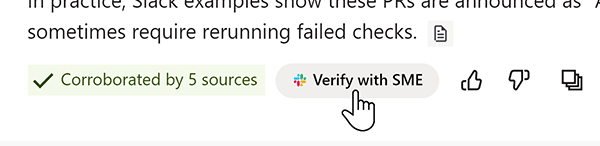
A chat user starts the process by clicking Verify with SME for an eligible response. Stack Internal uses the response topic and its SME escalation path to select the first eligible reviewer. It applies routing rules such as availability and rate limits before sending the request.
SMEs receive requests through the connected Stack Internal Slack app. The request includes the question, the suggested answer, and supporting sources so the reviewer has context. The SME can respond in Slack, or (in the future) Stack Internal.
When an SME completes a review, Stack Internal records the outcome as a trust signal. The user that requested the verification receives a Slack update when the review completes. If no one responds, Stack Internal can forward the request to the next eligible SME in the escalation path.
Adding someone as an SME does not automatically send them a status notification. Instead, Stack Internal notifies them when they receive a topic validation request.
Ongoing SME management
Your users rely on Stack Internal, and Stack Internal relies on SMEs. To maintain the highest standards of knowledge quality, site admins should not take SME assignments lightly. Add a user as an SME only when they have demonstrated the knowledge and availability to review requests for that topic. Review the escalation path periodically, especially when team responsibilities change.
If a user is no longer suitable for the SME role, or wishes to no longer review content as an SME, open each relevant topic and click Remove by their name.
Get help
If you have questions or issues, reach out to our support team for help.