TABLE OF CONTENTS
ADMIN PRIVILEGES REQUIRED
Overview
Single sign-on (SSO) lets users sign in to your Stack Internal workspace using the username and password they already use at work, so there's no extra login to remember. Stack Internal accomplishes this by connecting to the identity provider (IdP) your company already uses, such as Okta or Microsoft Entra ID.
Stack Internal uses the WorkOS enterprise identity platform to connect to—not replace—your IdP. Your organization continues to manage users, credentials, multifactor authentication, conditional-access policies, and other sign-in controls.
Stack Internal and Stack Internal Community (previously Stack Overflow Enterprise) are separate products with separate SSO configurations. If your company uses both, set up SSO for each one.
Before you begin
To set up SSO, have these ready:
- Admin access to your Stack Internal workspace and to your company's IdP.
- The connection details your sign-in system needs. The WorkOS setup screen walks you through what to enter.
- A test account you can use to check that sign-in works.
Stack Internal connects using one of two standard technologies: SAML (Security Assertion Markup Language) or OIDC (OpenID Connect). For SAML you'll usually need your sign-in system's address, identifier, and a signing certificate. For OIDC you'll need the client details the setup screen asks for.
You'll find it helpful to have a text file or other working document open to copy/paste information as you go through this process.
Set up SSO
Initial configuration
If you're setting up your Stack Internal workspace for the first time, you'll configure SSO as part of the initial setup process.
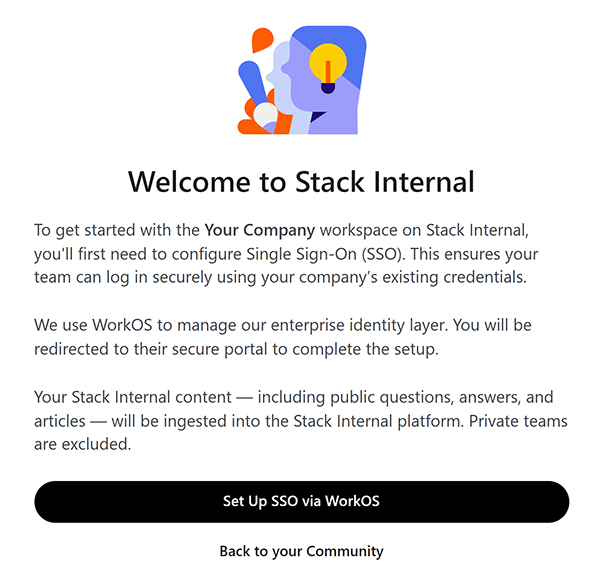
Click Set Up SSO via WorkOS on the welcome screen. You'll see the "Select your identity provider" page, where you can choose your IdP.
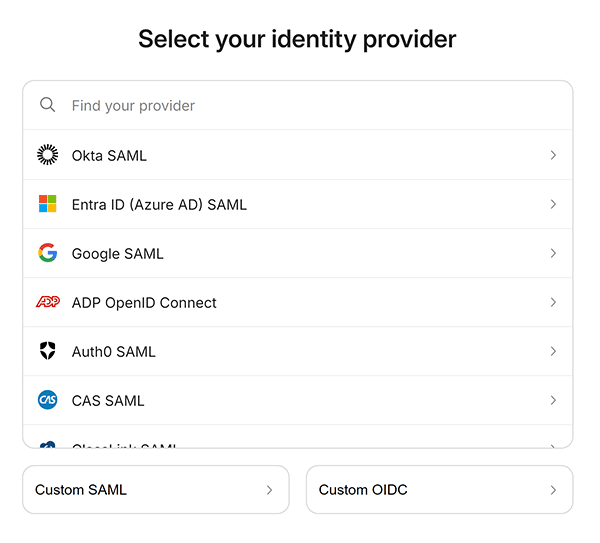
If your IdP isn't listed, use Custom SAML or Custom OIDC.
After you choose the SAML or OIDC option, follow these steps:
- Walk through the step-by-step instructions provided. Use your working document to copy details between your sign-in system and the setup screen in both directions.
- In your IdP, use your company's usual process to make the Stack Internal app available to the people or groups who should be able to sign in.
- Complete the IdP's verification steps so the connection becomes active.
- Return to Stack Internal and check that SSO shows as enabled.
- Test sign-in: sign out or open a private browser window, go to your workspace link, and sign in as your test user. Confirm you return to the right workspace with the right role.
Change your configuration
To change your existing SSO configuration, click Control Center in the left-hand menu then Single Sign On (SSO). Click Edit configuration in WorkOS.
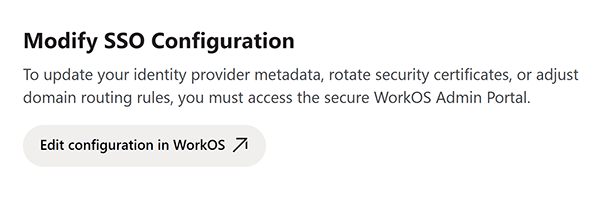
There you'll find the same configuration options you used to first set up your Stack Internal workspace. Consult the instructions on the page, as well as the IdP-specific guides found on the WorkOS integrations page.
Confirm your SSO setup
To confirm that your SSO setup is working correctly, verify that:
- The Control Center home page shows the SSO setup step as complete.
- Users can sign in from the workspace link and land in the correct workspace.
- Users who are not assigned to the connection at the IdP, or who are inactive, can't get in.
- Only your designated administrator gets administrator access. Signing in doesn't give anyone admin rights.
Troubleshooting
- Initial Setup doesn't show as complete. Make sure the connection is active, wait a few moments, then refresh the Stack Internal Control Center page.
- A user can't sign in. Check that they're assigned to the connection at the IdP, are part of your company, are using the right email domain, and are active.
- A user signs in but has the wrong role. Check their user role in Control Center. Signing in proves who someone is; it doesn't grant permissions.
- You already use SSO for your Stack Internal community. Set up Stack Internal separately. The two products keep separate sign-in configurations.
If you contact support, include your workspace link, which IdP you use, your email domain, and when you tried to sign in. Don't send passwords, private keys, or access tokens.
Frequently asked questions
Does WorkOS replace our current IdP?
No. WorkOS connects your SSO system to Stack Internal. Your company keeps control of passwords and access rules.
Can we use SAML or OIDC?
Yes, Stack Internal supports both. The setup fields depend on which one you choose.
Does signing in make someone an administrator?
No. Administrator access depends on the role assigned in Stack Internal, not on whether the person signed in successfully.
Get help
If you have questions or issues, reach out to our support team for help.