TABLE OF CONTENTS
ADMIN PRIVILEGES REQUIRED
Overview
Control Center is the administrator setup and configuration interface for Stack Internal. As a site admin, you can use Control Center to enable the Stack Internal workspace, manage user access, connect organizational knowledge, and register API applications. This guide gives details about each section of Control Center. If you want to set up your Stack Internal site quickly, you can also read the Admin Quickstart Guide.
Control Center at a glance
To access Control Center, click Control Center in the left-hand menu. You'll see the following areas.
- Get started Complete minimum setup and launch the workspace.
- Users Manage member status and administrator/user roles.
- Single Sign-On (SSO) Configure and review company identity provider (IdP) access.
- MCP Manage the workspace's Model Context Protocol interface.
- Sources Connect and maintain approved knowledge sources.
- SMEs Review subject matter experts and knowledge-validation coverage.
- Analytics View usage metrics and audit logs.
- OAuth Applications Register and revoke scoped API client applications.
Get started
Click Get started in the left-hand menu to complete the minimum setup required to make the workspace available to regular users.
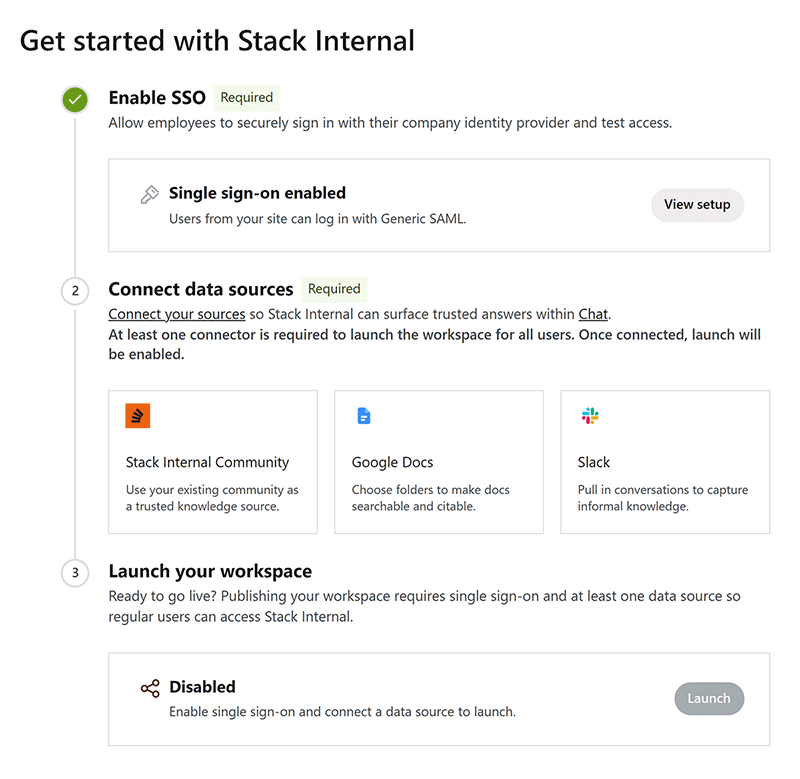
The Get started page provides a readiness checklist.
For Organization workspaces, complete these steps to launch your workspace:
- Enable SSO Configure company sign-in and verify that the page shows SSO as enabled. When SSO is working, Control Center displays the configured authentication method. Learn more about setting up SSO in the Single Sign-on (SSO) Overview article.
- Connect data sources Connect at least one data source.
- Set up the API (optional) Create an OAuth application to allow external access by API.
- Launch your workspace. Select Launch workspace once SSO is enabled and at least one source is connected. Confirming the launch makes the workspace available to regular users.
Starter workspaces do not require SSO or a launch step. You can optionally invite users and connect up to three sources before using Chat.
After launch, you'll see a "Your workspace is now live" confirmation.
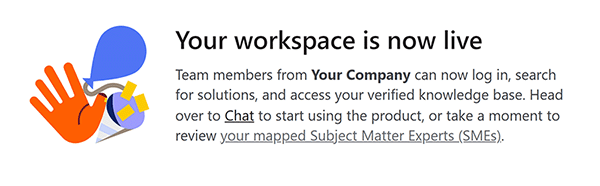
You can continue using the other Control Center pages to administer user accounts, configure additional data sources, manage SMEs and API applications, and more.
Access
The Access section allows you to set user permissions, manage SSO configuration, and enable/disable the MCP server.
Users
Use the Users page to find workspace members, manage their roles, and control their access to the workspace. The page displays each member's name, email address, status, and role. You can sort the user list by role, and change the number of users shown per page.
Click Filter to filter the user list by status and role.
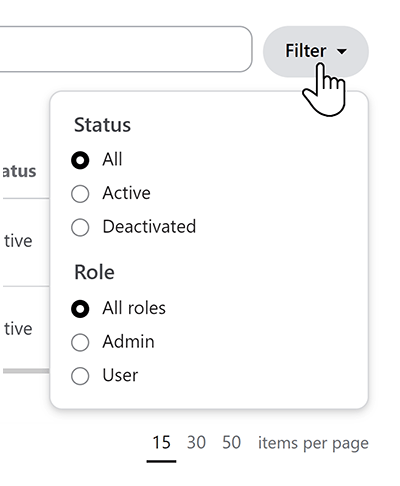
To search for users, type all or part of a name into the search box at the top of the page.
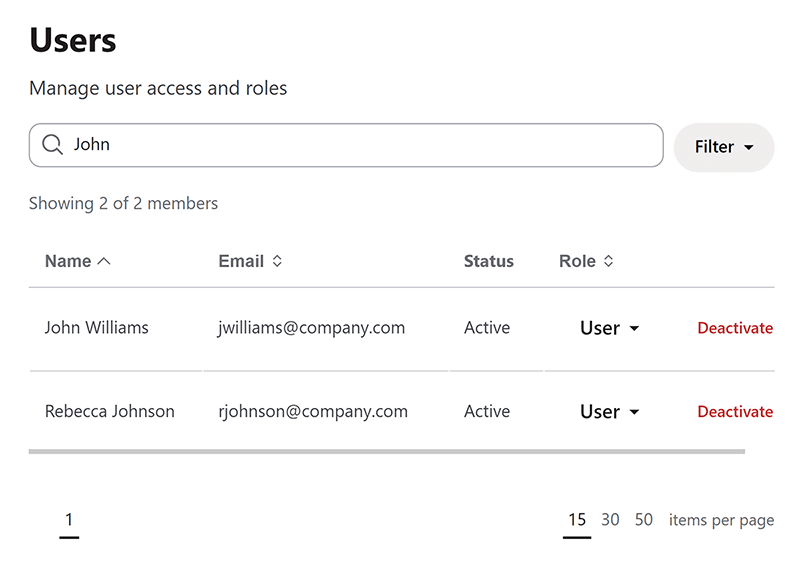
There are several actions you can perform for each user listed.
- To change a user's role between regular user and admin, click that user's link in the "Role" column.
- To block a user from logging into Stack Internal, click Deactivate. This doesn't affect any of the user's content on attached sources, nor their ability to log in to other sites or tools.
- To restore a deactivated user's access to Stack Internal, click Reactivate.
Organization workspaces can also create and manage custom roles with granular permissions. Starter workspaces use the standard roles.
To prevent a site administrator from accidentally removing their admin access, you can't change your own role or deactivate your user account from this page.
Single Sign-On (SSO)
As an Organization workspace admin, you'll use the Single Sign-On (SSO) page to begin the process of connecting Stack Internal to your identity provider (IdP).
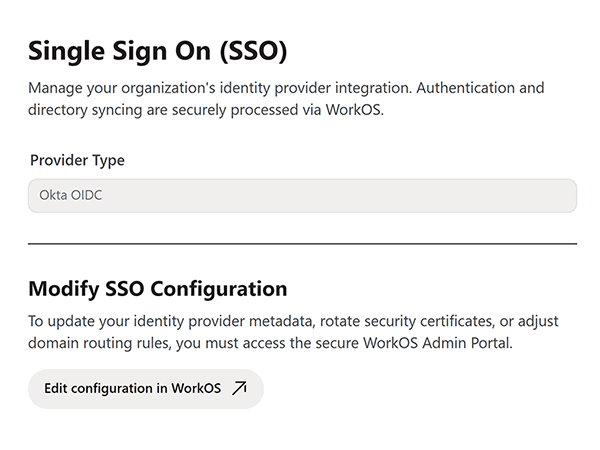
Stack Internal uses WorkOS to connect to a variety of IdPs, a step you performed on initial setup of your Stack Internal site. After initial setup, you can make changes to your SSO configuration by clicking Edit configuration in WorkOS. This will take you to the WorkOS configuration page.
Learn more about setting up SSO in the Single Sign-on (SSO) Overview article.
MCP
Use the MCP page to manage access to the MCP server.
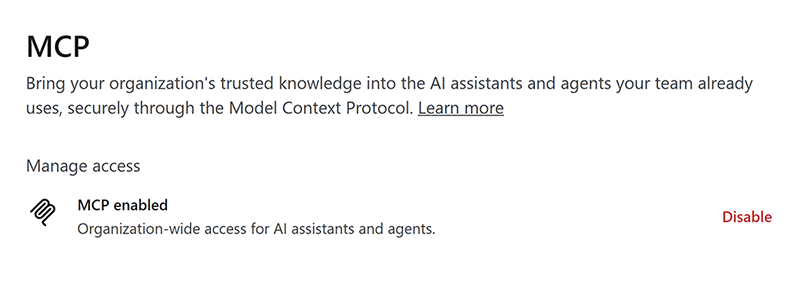
Click Enable or Disable to toggle MCP access across your entire workspace.
To learn more about connecting to your MCP server, read the MCP Server Overview article.
Data management
The Data management section lets you connect knowledge sources.
Sources
Use the Sources page to connect, configure, and maintain the knowledge sources Stack Internal can use.
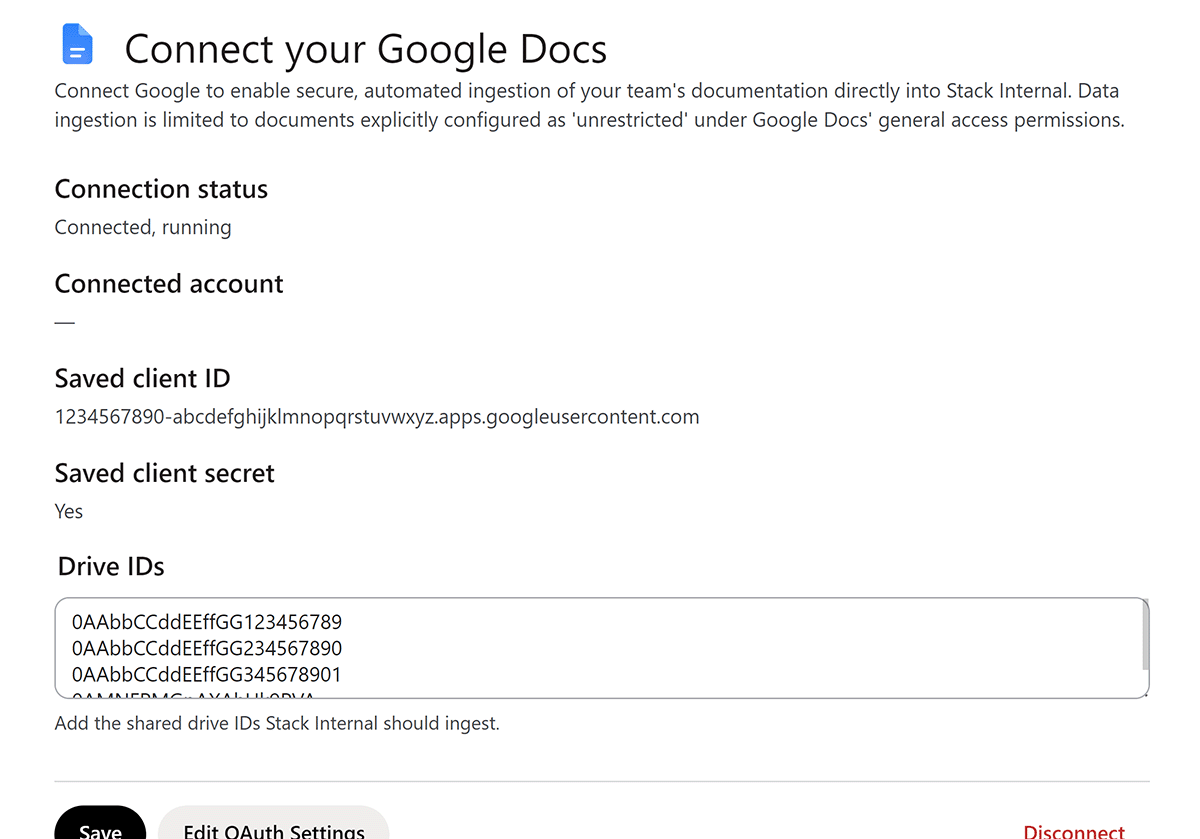
You must connect at least one data source to make your Stack Internal site available to users.
Available source types include:
- Stack Internal Community Uses an existing Stack Internal community as a trusted knowledge source. Read Configure the Stack Internal community Source.
- Google Docs Uses an OAuth connection and configured drive IDs to read Google Workspace content. Read Configure the Google Docs Source.
- Slack Ingests selected public channels and supports direct messages for SME verification. Read Configure the Slack Source.
- Microsoft Teams Ingests selected Microsoft Teams channel conversations. Read Configure the Microsoft Teams Source.
- GitHub (coming soon) Ingests GitHub repo files, metadata, pull requests,and more. Read Configure the GitHub Source.
SMEs
Click SMEs to review subject matter experts and track coverage for knowledge validation.
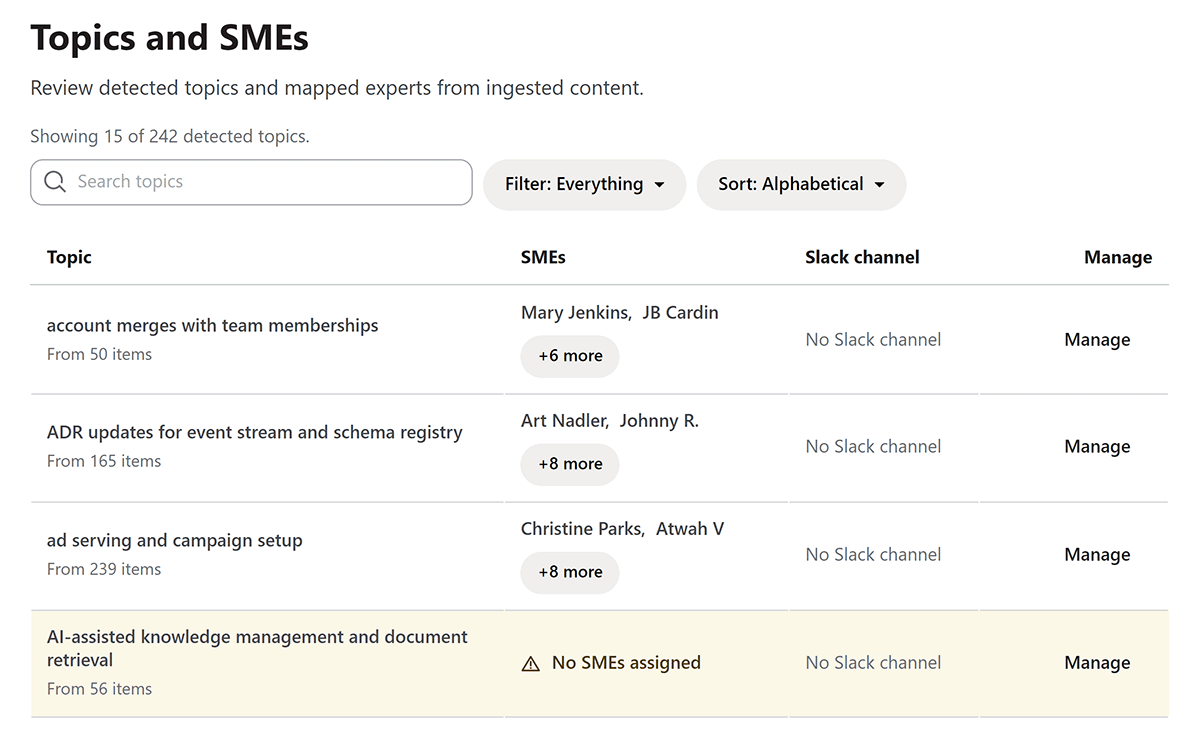
Subject matter experts help keep important knowledge accurate over time. Use the SME controls to:
- Review SME assignments for coverage gaps, departed employees, and overloaded experts.
- Ensure mapped SMEs are both active and receiving content review notifications.
- Establish clear ownership and escalation rules for unanswered or disputed validations.
Developer tools
The Developer tools section allows you to manage custom applications and API access for your workspace.
OAuth Applications
Use the OAuth Applications page to register, review, filter, and revoke custom applications that call Stack Internal APIs.
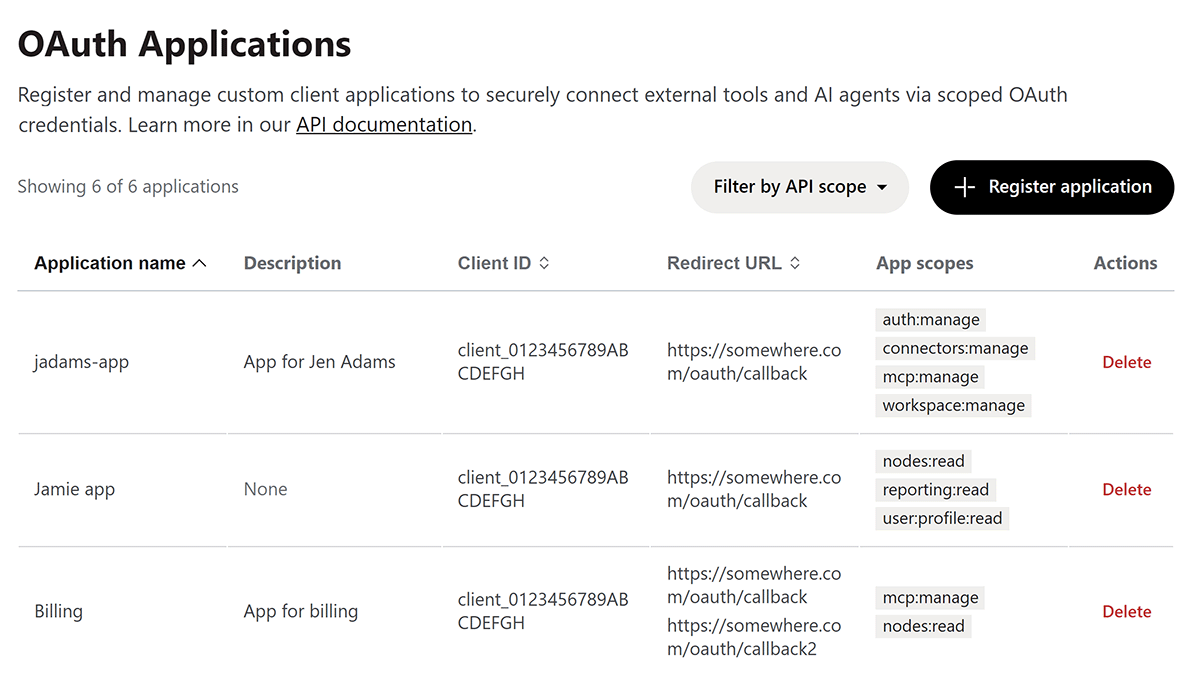
OAuth Applications serves as the developer-tools directory for external scripts, tools, and AI agents. The directory displays the application name, Client ID, redirect URL, and granted scopes. You can sort the list, filter by API scope, paginate through results, register new applications, or delete existing ones.
To learn more about creating and managing OAuth applications for API access, read the API Applications article.
Analytics
Use Analytics to view and export usage metrics. Organization workspaces can access audit logs in Control Center and through the API.