TABLE OF CONTENTS
Overview
The Stack Internal Audit Log tracks and shows important actions in your workspace. This can help you investigate issues, review security-relevant activity, support compliance reviews, and understand how people and systems changed resources. Each audit event identifies the actor, action, affected resources, outcome, and available context.
The event table
To access the log, click Analytics in the left-hand menu, then Audit Log. You'll see the audit log table.
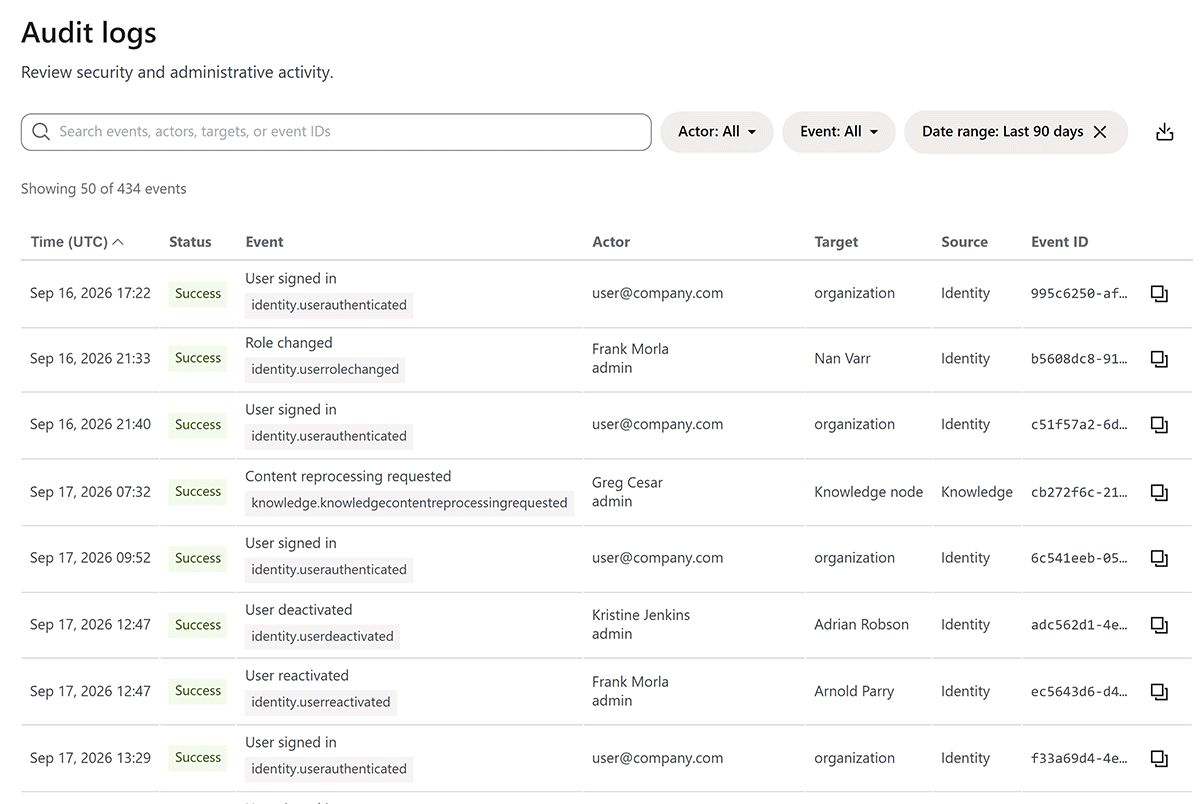
Each event row includes the following columns:
- Time (UTC) Audit Log shows the date and time when the action occurred in Coordinated Universal Time (UTC).
- Event The title for the registered event type.
- Actor The person or system that performed the action. When available, Audit Log shows the display name and role.
- Affected resources The resource or resources that the action changed or affected.
- Outcome The result that the event source reports.
- Source The Stack Internal system that produced the audit event.
- Event ID The unique identifier of the event.
Event ID
The event ID is a universally unique identifier (UUID). To copy an event's ID to your clipboard, click the copy (two squares) button to the right of the ID. Supply this ID if you contact Stack Internal support about an event.
Controls
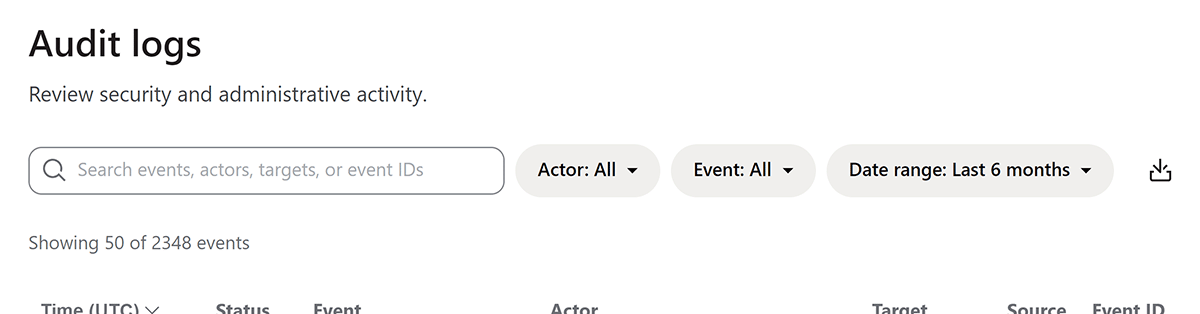
The event list for an active site will quickly grow to thousands of events. The top of the Audit Log page has several controls to help locate, filter, and manage events.
Search
The search box lets you quickly locate events, searching by event (type), actor, target, and event ID. Type the search term into the search box, and Stack Internal will immediately return results. To clear the search, click X in the right side of the search box.
Filters
You can control the types of events shown by setting one or more filters. Click the Actor, Event, or Date range pull-down menu and select the filter. The list will then show only those events that match the filter(s) set. To remove a set filter, click its X button.
Pagination
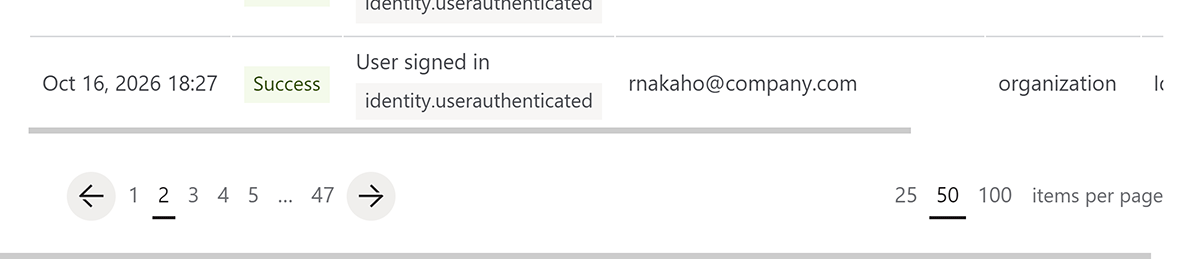
By default, the Audit Log page shows 50 events. You can change this number, and step through pages of events, with the pagination controls at the bottom of the page.
Download log data
To download event data in CSV (comma-separated values) format, click the download button to the right of the filter controls.
The export honors search and filters results, but ignores pagination. This means the CSV file will contain all rows that match current search and filter settings (if any). To download the full audit log, remove all search terms and filters.
Audit log access
All site admins can access the audit log, as well as users given audit log permissions by an admin.
Audit Log shows and exports events only from the workspace you're viewing. To view or download events from another workspace, you need access to that workspace.
Get help
If you have questions or issues, reach out to our support team for help.