TABLE OF CONTENTS
ADMIN PRIVILEGES REQUIRED
Overview
The Slack source helps Stack Internal bring useful knowledge from Slack into your organization’s Stack Internal experience. Once connected, Stack Internal ingests content from selected Slack channels. It then keeps that content up to date, making high-value Slack discussions, answers, and context available alongside your other knowledge sources.
The Slack source operates on an opt-in basis, meaning Stack Internal will not ingest any content until an administrator actively enables and configures the source. A Stack Internal site admin then controls the scope of ingestion by supplying a list of specific Slack channel IDs. Stack Internal will only ingest content from those channels.
The Slack source will ingest content only if a site admin has:
- enabled the Slack source
- specified the channels to include
- added the Slack bot to the specified channels
The Slack source uses read-only permissions, so it can't change or delete any of your Slack content.
Connect to Slack
To set up the Slack Source, you'll need to log into both Stack Internal and Slack as an administrator. If you use Slack in a browser, you'll find it helpful to keep both Stack Internal and Slack open in separate tabs.
-
In Stack Internal, click Control Center.
-
Click Sources under the "Data management" heading.
-
Find Slack in the list of available sources. Click Connect.
-
Click Connect to Slack.
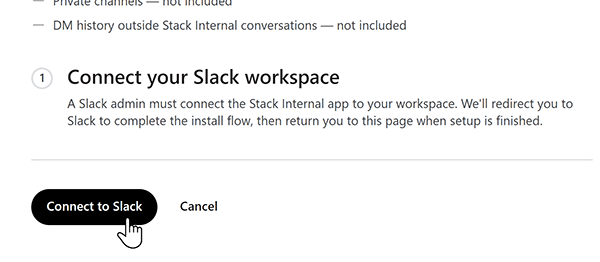
-
If not already logged in, log into Slack as an admin.
-
On the screen that appears, click Allow. You'll return to Stack Internal.
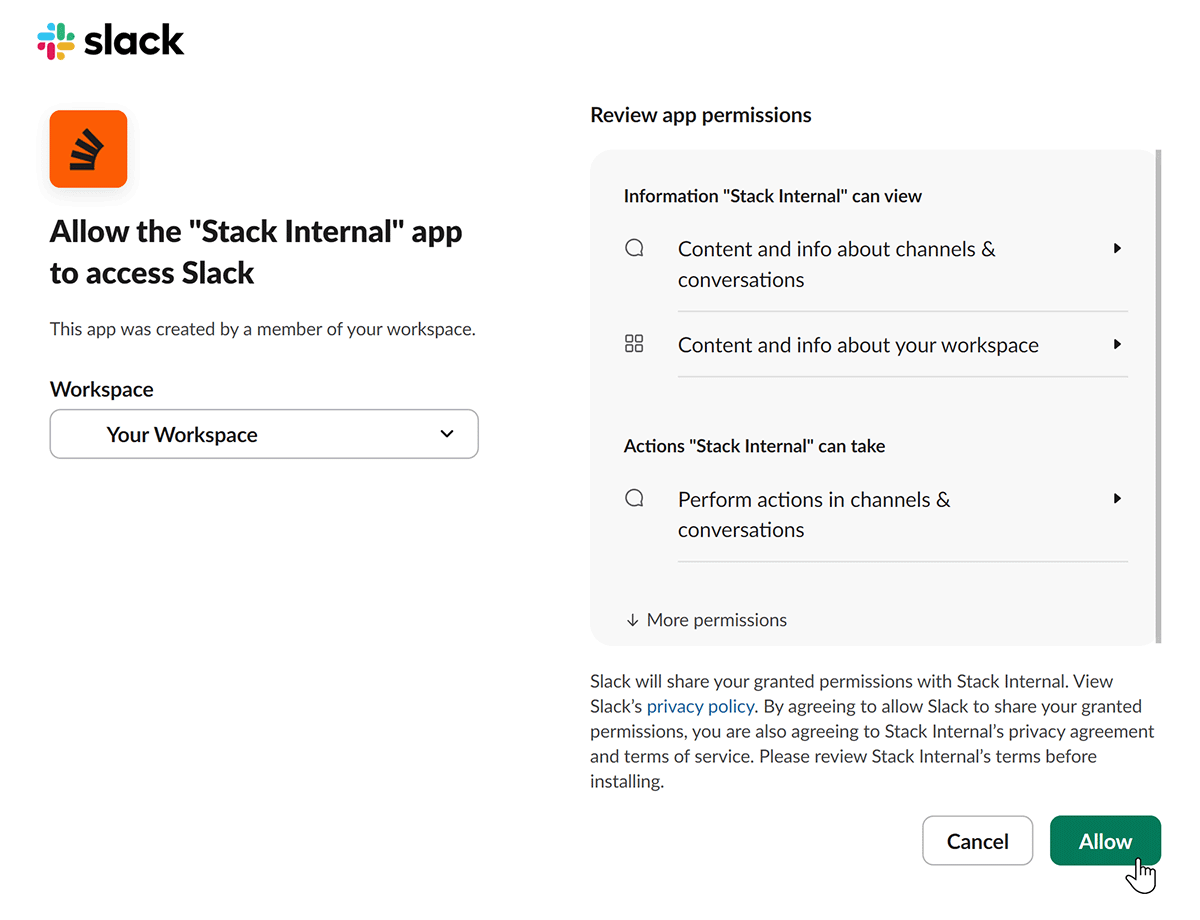
-
In Slack, navigate to each channel you want Stack Internal to ingest. Add the Stack Internal bot to the channel with this command: /invite @Stack Internal.
-
Follow the instructions below to collect the channel ID for each channel you add the bot to. Copy each channel ID to a working document or text file, or you can switch between Slack and Stack Internal to paste each ID directly.
Select Slack channels
Stack Internal needs the ID of every Slack channel it should ingest. How you locate a channel's ID depends on whether you're using the Slack app or accessing Slack in a browser.
Channel IDs in the Slack app
If you're using the Slack app on your computer, go to the channel you wish to add to the ingestion list. Then:
-
Click the three dots (More actions) at the top of the window, near the channel name.
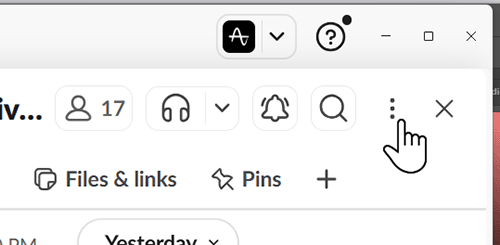
-
Select Channel details, then Open channel details.
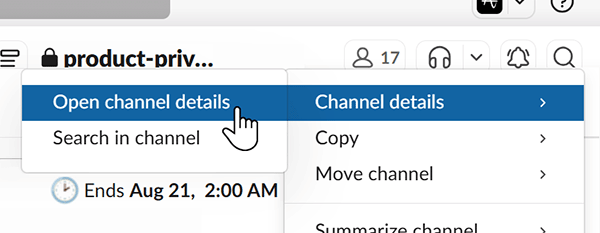
-
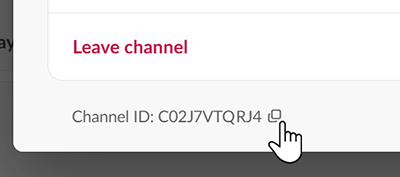
The channel ID appears at the bottom of the window. Click the copy icon (Copy channel ID) to copy the ID to your working document, or paste it directly into Stack Internal.
Channel IDs in the Slack browser
To find a channel's ID when using Slack in a browser, open the channel in Slack. The URL in your browser will include the Slack channel ID at the end, after the last forward slash.
For example: in the URL https://app.slack.com/client/2FF4T07GJ/C02JVTQRJ47, the channel ID is C02JVTQRJ47. Copy this section of the URL to your working document, or paste it directly into Stack Internal.
Add channel IDs to Stack Internal
In Stack Internal, paste the ID of each channel into the "Channel IDs" box. Paste one channel ID per line.
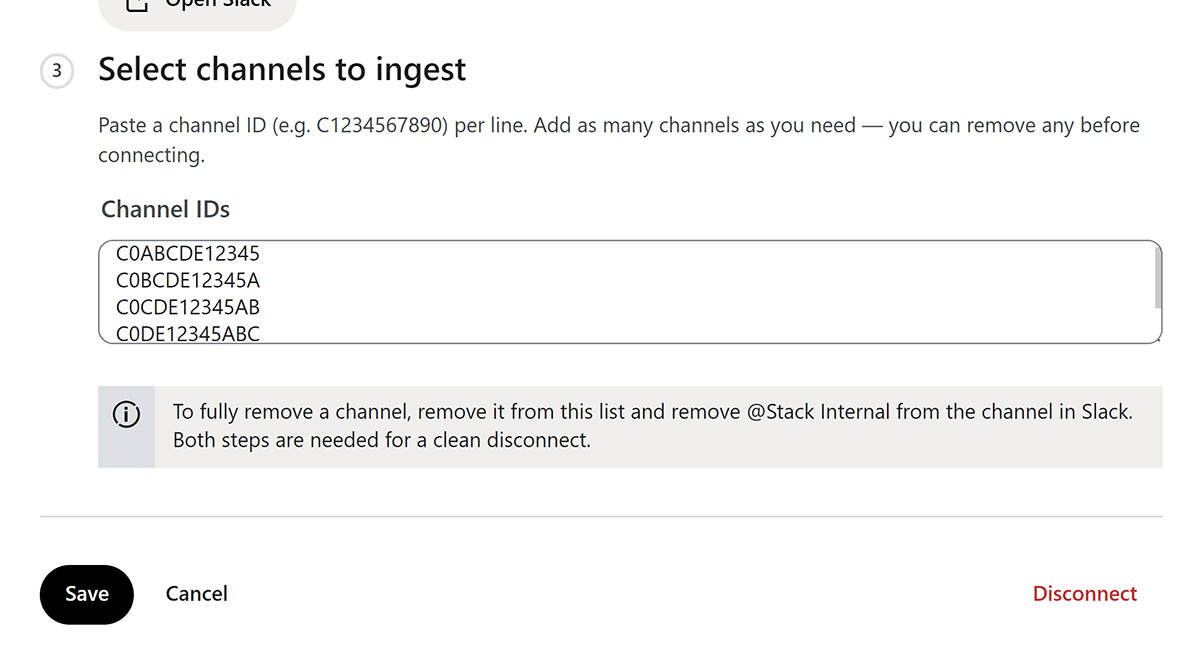
Click Save to complete the Slack source configuration process.
Content sync
After you configure the Slack source, Stack Internal keeps the designated Slack channels synchronized and up to date. This means the source watches for, and ingests, new content regularly.
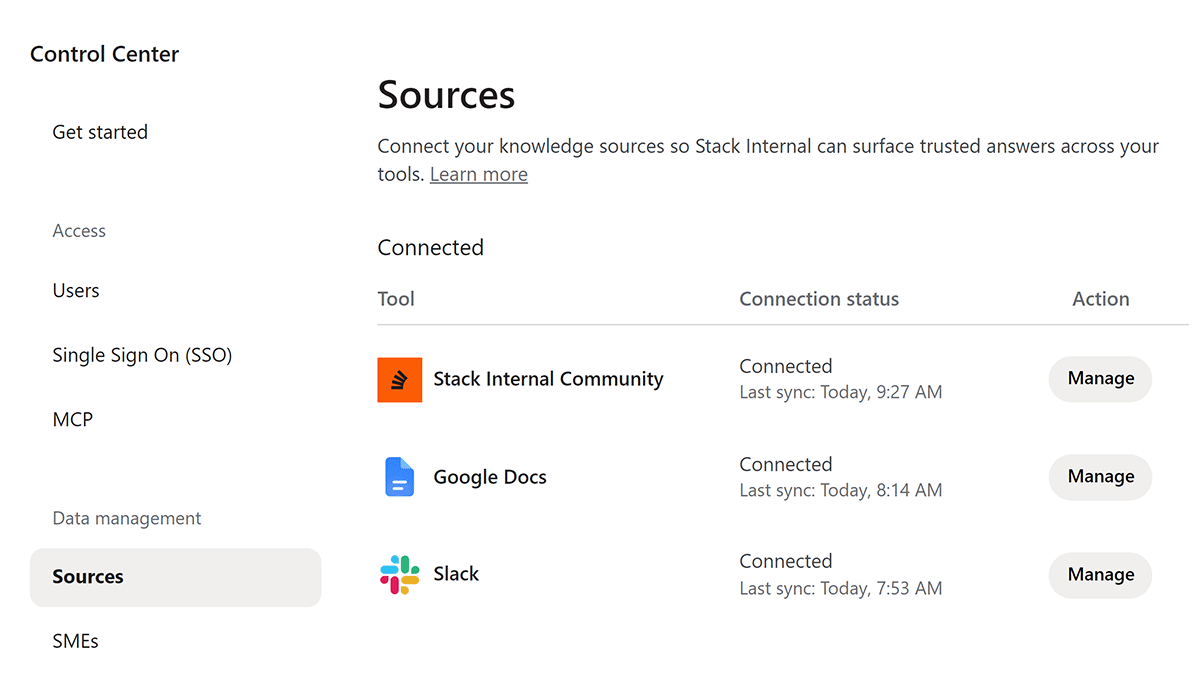
To check the status of the Slack source (and others) in Stack Internal, click Control Center then Sources. There you can see each source's connection status and last sync (when Stack Internal last checked for new content).
Stop ingestion of Slack content
Disconnect the Slack source
To end ingestion of all new Slack content, click Disconnect in Stack Internal. This completely disconnects the Slack source.
Disable a Slack channel
To remove a Slack channel from ingestion, delete its channel ID from the Stack Internal "Channel IDs" list and click Save.
Disconnecting the Slack source or removing specific Slack channels will not remove previously ingested Slack content. If you need previously ingested content removed, contact support.
Get help
If you have questions or issues, reach out to our support team for help.