TABLE OF CONTENTS
ADMIN PRIVILEGES REQUIRED
Overview
Stack Internal helps your organization find trusted knowledge across the tools your teams already use. The Google Docs source ingests selected Google documents, then Stack Internal combines their content with other sources to provide users relevant, trusted answers.
What the source ingests
The Google Docs source operates on an opt-in basis, meaning Stack Internal will not ingest any content until an administrator actively enables and configures the source. A Stack Internal site admin then controls the scope of ingestion by supplying a list of specific Google Drive folder IDs. Stack Internal will only ingest files within these designated folders.
The Google Docs source will ingest content only if:
- A site admin has enabled the Google Docs source.
- A site admin has specified Google Drive folders for ingestion.
- Documents are shared with your organization or are restricted to people or groups that the connected Google account can read.
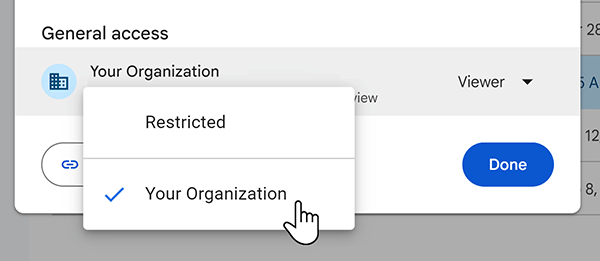
Stack Internal ingests supported Google Docs in configured folders, including restricted content. It reads document permissions and user/group information to ensure content is available only to authorized users. For group-restricted documents, the connected Google account must be able to view the source Google Groups and their memberships. If Stack Internal can't determine group membership, it won't expose the content to that user.
We strongly recommend you audit the sharing settings of your intended folders and documents before you enable the Google Docs source. The exact content exposed to Stack Internal users depends on folders in the allowlist and the specific access model utilized by your deployment.
If you allow ingestion of sensitive or private Google content by mistake, you can't simply remove it from Stack Internal's knowledge layer. If you need to remove content from Stack Internal, reach out to support.
Before you begin
The Google Docs source can only be connected with a Google Workspace account. Personal accounts are not supported at this time.
You'll need elevated access and privileges in the Google Cloud Workspace to set up the Google source connector. You may need to reach out to your IT team to ensure you have the following:
- Admin access to Google Workspace.
- The following Cloud IAM roles:
roles/oauthconfig.editorroles/serviceusage.serviceUsageViewerroles/iam.serviceAccountViewer
- The following OAuth scopes:
auth/documents.readonlyauth/drive.readonlyauth/admin.directory.user.readonlyauth/cloud-identity.groups.readonly
- Access to manage the following Google services:
- Google Docs API
- Google Drive API
- Cloud Identity API
- Admin SDK API
Configure the Google connector
Create a dedicated user
Using a regular employee account means the Google source will fail if that employee changes roles, loses access, or leaves your organization. Instead, have your IT department create a dedicated Google user for the Stack Internal Google source. Make sure that the user has access to each shared drive or folder that Stack Internal should access.
Create or choose a Google Cloud project
-
Log into the Google Cloud Console (https://console.cloud.google.com) as the dedicated user created for the Stack Internal Google source.
-
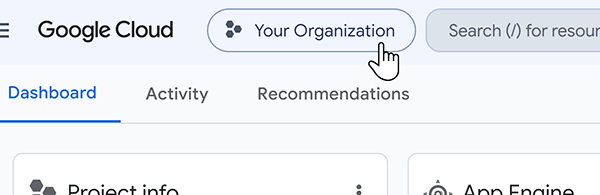
Click your organization name at the top of the screen to open the project picker.
-
Select an existing project you want to use for this integration, or
-
Create a new project with a descriptive name, such as "Stack Internal Google Source".
After creating a project or updating IAM permissions, Google can take anywhere from 5-15 minutes (and up to 24 hours in rare cases) to propagate settings. If you see a "Not allowed to enable" error or missing permissions message when proceeding to the next steps, wait a short while for Google's backend to sync and try again.
Enable the required APIs
-
Click the three lines button in the upper-left corner to open the Google Cloud navigation menu.
-
Under "APIs & Services", click Library.
-
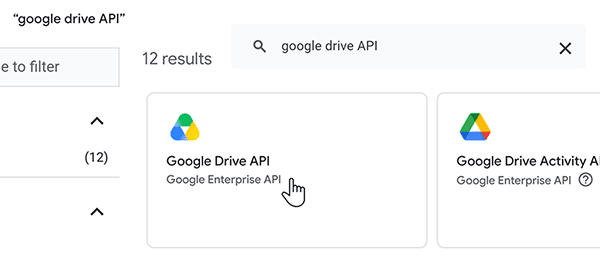
Search for "Google Drive API", then click the Google Drive API tile.
-
Click Enable.
-
Repeat the process to search for the following APIs:
- Google Docs API
- Cloud Identity API
- Admin SDK API
Configure OAuth
- In the search bar at the top of the screen, enter "auth".
- Select Google Auth Platform from the search results.
- Click Branding in the left-hand menu.
- If prompted, click Get started.
- Enter the following, clicking Next as needed to advance through the process:
- App name Enter a descriptive name, such as "Stack Internal Google Connector".
- User support email Enter your site admin email.
- Audience Select Internal.
- Contact Information Enter your site admin email.
- Finish Review and agree to the user data policy, then click Continue.
- Click Create.
Configure Scopes
- In the search bar at the top of the screen, enter "data access".
- Select Data Access from the search results.
- Click Add or remove scopes.
- Locate and enable the checkbox for each of the following scopes (use the Filter field if needed):
auth/documents.readonlyauth/drive.readonlyauth/admin.directory.user.readonlyauth/cloud-identity.groups.readonlyauth/admin.directory.group.member.readonly
- Click Update.
If you add OAuth scopes or enable required APIs for an existing connection, disconnect and reconnect the Google Docs source. Existing refresh tokens do not gain new permissions automatically.
Create an OAuth 2.0 client ID
- While still on the "Data Access" page, click Clients in the left-hand menu.
- Click + Create client at the top of the page.
- For Application type select Web application.
- Give the client a descriptive name, such as "Stack Internal Web Client".
- Click + Add URI under "Authorized redirect URIs".
- Enter https://callbacks.stackinternal.com/v1/google/oauth/connector-callback
- Click Create.
Copy the Client ID and Client secret
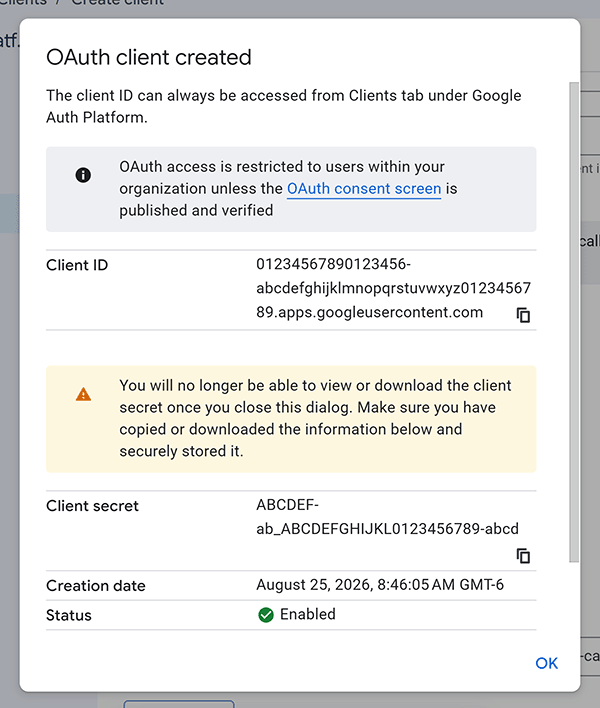
The "OAuth client created" screen will appear.
-
Click the copy (two pages) buttons to copy and paste the Client ID and Client secret to the bottom of the Stack Internal Google source page. You can also click Download JSON to download the credentials in a JSON file, then extract the
client_idandclient_secretvalues.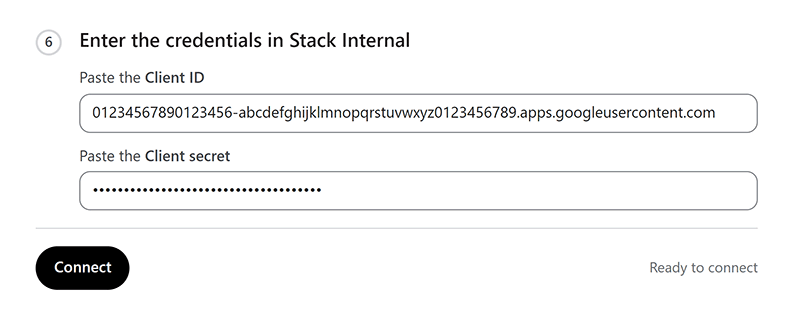
-
Click Connect.
Save the client secret to a safe, secure place as you'll only be able to download it for a short time after creation. If you lose the client secret, you'll need to create a new one and update the Stack Internal source credentials.
Specify Google Drive folder IDs
Once connected to your Google docs, Stack Internal will ingest the folders you specify along with their sub-folders. On the page that appears, enter into the "Drive IDs" box those folder IDs you want Stack Internal to ingest.
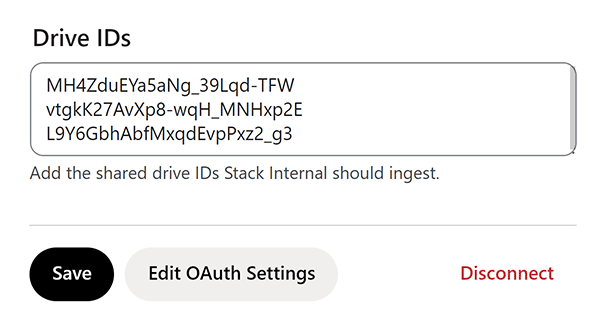
To find a Google folder's drive ID, open the folder in your browser. The URL in your browser will include the ID at the end, after the last forward slash.
For example: in the URL https://drive.google.com/drive/u/0/folders/4rV1DVU-J1FHmTutY, the folder drive ID is 4rV1DVU-J1FHmTutY. Copy this section of the URL, and paste it on its own line in the "Drive IDs" box. When you've added all the folders you want ingested, click Save.
Content sync
After you configure the Google source, Stack Internal keeps the designated Google folders (and their sub-folders) synchronized and up to date. This means the source connector watches for, and ingests, new content regularly.
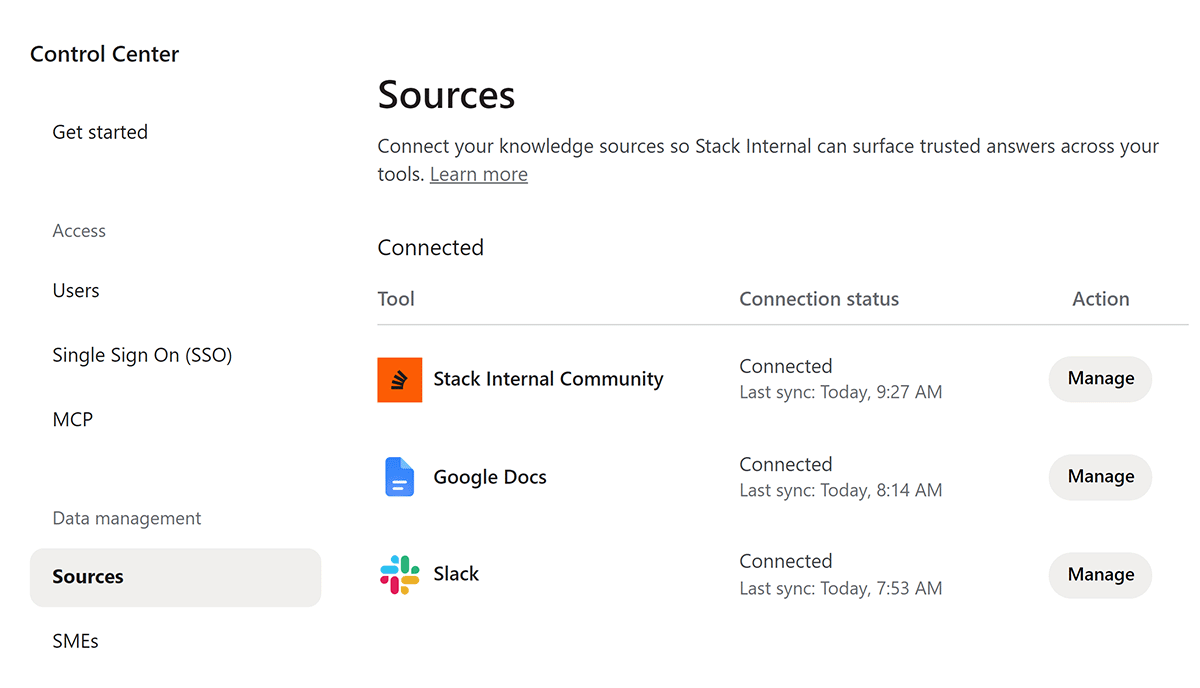
To check the status of the Google source (and others) in Stack Internal, click Control Center then Sources. There you can see each source's connection status and last sync (when Stack Internal last checked for new content).
Stop ingestion of Google content
Disconnect the Google drive source
To end ingestion of all new Google drive content, click Disconnect in Stack Internal. This completely disconnects the Google source.
Disable a Google folder
To remove a Google folder and its sub-folders from ingestion, delete its ID from the Stack Internal "Drive IDs" list and click Save.
Disconnecting the Google source or removing specific Google folders will not remove previously ingested Google content. If you need previously ingested content removed, contact support.
Get help
If you have questions or issues, reach out to our support team for help.